

In our last lesson, Python for Beginners #2: Your First “Hello, World!” with Trinket, you officially became a coder! You wrote your first program and used the print() function to make the computer display a message.
That’s a fantastic start. But what if we want our program to remember things, like a player’s name or their score in a game? We need a way to store that information so we can use it later. For this, we use one of the most important tools in all of programming: variables.
What You’ll Learn Today
- What a variable is and why it’s like a labeled box.
- How to create a variable and give it a value.
- The difference between a variable’s name and the data it holds.
- How to use a variable in a
print()statement.
The Big Idea: Variables are Labeled Boxes 📦
The easiest way to understand variables is to think of them as storage boxes.
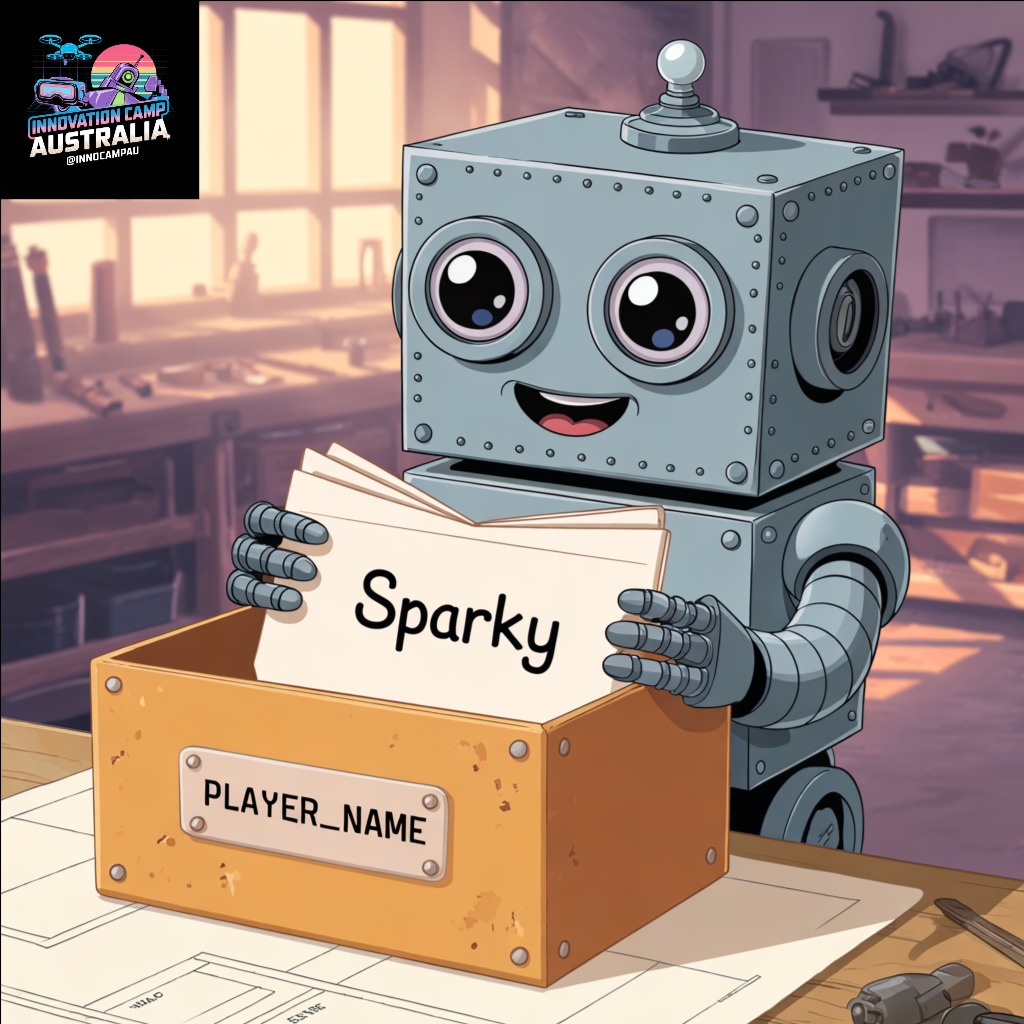
Imagine you have a box, and you put a piece of paper with the name “Sparky” inside it. To remember what’s in the box, you put a label on the outside that says pet_name.
A variable is exactly like that: it’s a labeled container in the computer’s memory where you can store a piece of information.
- The Label is the variable name (e.g.,
pet_name). - The Contents are the value or data you put inside (e.g.,
"Sparky"). - The
=sign is what we use to put the contents in the box. In programming, a single equals sign doesn’t mean “is equal to”; it means “assign this value to this variable.”
Step-by-Step: Let’s Use Variables!
Time to get hands-on. We’ll create a variable, store a name in it, and then ask the computer to show us what’s inside.
Step 1: Choose Your Coding Playground
Just like last time, you can choose the option that works best for you.
- Option A: Click here to open a new Python 3 Trinket in a new tab for a bigger workspace.
- Option B: Use the interactive Trinket window embedded right here on the page.
Step 2: Create Your First Variable
In the editor on the left, type the following line of code. This is called declaring a variable.
player_name = "Sparky"
Here, we’ve created a variable named player_name and assigned it the text value "Sparky". Remember, text in Python needs to be wrapped in quotation marks to show that it’s a string.
Step 3: See What’s Inside the Box
If you run the program now, nothing will happen. We’ve stored the information, but we haven’t told the computer to do anything with it. Let’s use our print() function to see the variable’s contents.
On the next line in your editor, type:
print(player_name)
Important: Notice that we did not put quotation marks around player_name this time.
print("player_name")would print the literal text “player_name”.print(player_name)tells Python: “Hey, find the box labeledplayer_nameand print whatever is inside it.”
Step 4: Run Your Program!
Click the Run button (▶). Your code should look like this:
player_name = "Sparky"
print(player_name)
And the output on the right should be:
Sparky
Success! Your program created a variable, stored the name “Sparky,” and then retrieved that name to print it on the screen. It remembered!
Challenge Time!
Now it’s your turn to experiment. Try these challenges in your Trinket.
- Challenge 1: Create a second variable called
player_scoreand assign it a number (e.g.,100). Numbers don’t need quotation marks! Then, add a new line to print the score. - Challenge 2: Can you change the value inside
player_nameto your own name and run the program again? See how the output changes!
What You’ve Learned & What’s Next
You’ve just learned one of the most essential concepts in all of coding: how to make your program remember information using variables.
In our next lesson, we’ll make our programs truly interactive. We’ll learn how to ask the user a question with the input() function and then store their answer in a variable!
You’re building your coding skills one step at a time! To accelerate your learning and build even cooler projects with expert guidance, check out our hands-on workshops. Register your interest for our Python workshops and see how far your new skills can take you!

