

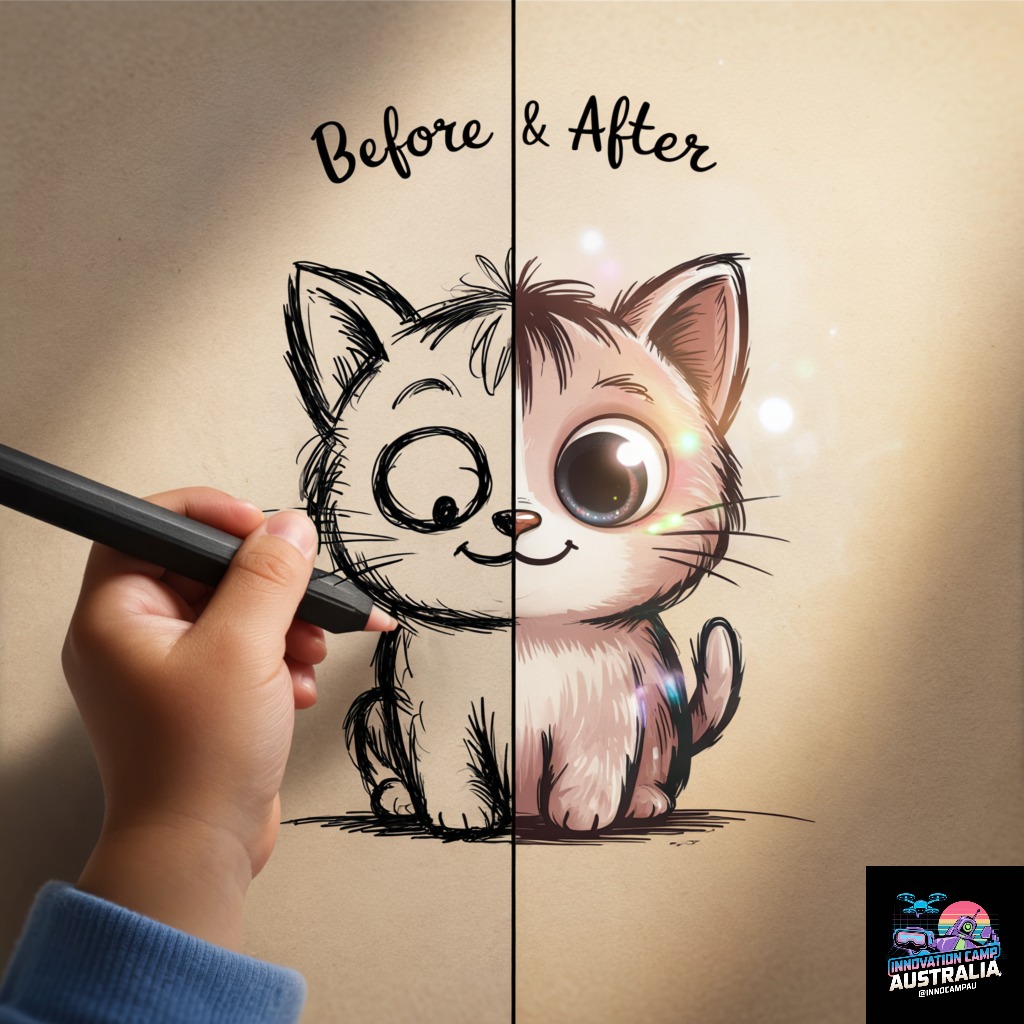
Ever tried to draw a cat on the computer, but it ends up looking like a lumpy potato? Or maybe your drawing of a car looks more like a misshapen box on wheels? We’ve all been there! But what if you had a magical assistant who could understand your wobbly doodles and transform them into perfect digital art?
Meet AutoDraw, a free and fantastic tool from Google that does exactly that. It uses the power of Artificial Intelligence (AI) to guess what you’re trying to draw and offers you beautiful, polished versions to use instead. It’s a fun way to create amazing pictures and get a peek into the exciting world of AI!
Our Objective and What You’ll Learn
The goal of this guide is to create a fun digital scene using AutoDraw while learning about the basic concepts of AI.
By the end of this tutorial, you will:
- Know how to use the main tools in AutoDraw.
- Understand the basics of AI Pattern Recognition.
- Create and colour your own simple scene.
- Learn how to save and share your digital masterpiece!
The AI Magic Explained: How Does it Know?!
AutoDraw isn’t using magic; it’s using a smart AI that has been trained by looking at thousands and thousands of drawings from people all over the world.
Think of it like a friend who is an expert at Pictionary. They’ve played so many times that they can guess you’re drawing a “bicycle” from just a couple of circles and a triangle. AutoDraw’s AI does the same thing. It recognizes the basic shapes and lines that make up an object—a process called pattern recognition—and then searches its massive memory for the best match. Every time someone uses it, the AI gets a little bit smarter!
Step-by-Step Tutorial: Let’s Create a Sunny Park Scene!
Ready to draw? We’re going to create a simple picture of a house in a sunny park.
Step 1: Open AutoDraw
First, open your web browser and go to the AutoDraw website: www.autodraw.com. You’ll be greeted with a clean, blank canvas.
Step 2: Select the Magic Pen
On the left-hand side, you’ll see a toolbar. Click on the very top tool that looks like a pen with sparkles around it. This is the AutoDraw tool.
Step 3: Draw a Simple House
With the AutoDraw tool selected, try to draw a house. Don’t worry about making it perfect! A simple square with a triangle on top is all you need. As you draw, watch the magic happen at the top of the screen.
Step 4: Choose the AI’s Suggestion
Look at the bar at the top of the page. It will say, “Do you mean:”. You should see a list of polished drawings that the AI thinks you were trying to make. Find a house that you like and click on it. Presto! Your wobbly doodle will instantly transform into a perfect house.
Step 5: Add a Sun
Now let’s add a sun. In a corner of your canvas, draw a circle, maybe with a few lines sticking out. The AI will offer you different suns, stars, and other circular objects. Click on the sun you like best.
Step 6: Move and Resize Your Drawings
Your sun might be too big or in the wrong place. To fix this, select the Move tool from the toolbar (it looks like a cursor arrow). Now you can click and drag your house or sun to move them around. You can also click on an object and drag the little squares on its corners to make it bigger or smaller.
Step 7: Add Some Colour!
A sunny day needs colour! Select the Fill tool (it looks like a paint bucket). Choose a colour from the palette at the bottom of the toolbar, then click inside your house and sun to fill them with colour. Let’s make the house red and the sun yellow.
Step 8: Draw a Tree
Let’s add a tree to our park. Select the AutoDraw tool again. Draw a simple trunk with a puffy cloud shape on top. The AI will guess you’re drawing a tree (or maybe a broccoli floret!). Select a nice-looking tree from the suggestions and use the Fill tool to colour it.
Step 9: Save Your Masterpiece
Once you are happy with your sunny park scene, it’s time to save it. Click on the three horizontal lines in the top-left corner (the menu button), then click Download. Your beautiful drawing will be saved as an image file on your computer!
What You Created
Congratulations! You’ve just used a powerful AI to create a wonderful piece of digital art. You learned how to draw, select, move, resize, and colour objects, all with the help of a smart assistant.
This is just a small taste of what AI can do. The same technology that recognizes your doodles is used in everything from self-driving cars to apps that can identify plants.
Want to go beyond drawing and learn how the “brain” of an AI actually works? Our workshops at InnoCamp dive into the fun and fascinating concepts behind Artificial Intelligence. Register your interest today and turn your curiosity into a superpower!

